

Table of Contents
Introduction
Ever wondered why your final grade never matches what you expected?
Many students in the USA struggle to understand how different scores affect their overall results. This becomes even more confusing when assignments, quizzes, and exams carry different levels of importance. That is where weighted grades in Google Sheets become extremely helpful for beginners. Instead of guessing, you can calculate everything with clear and accurate formulas.
Google Sheets makes this process simple and fast, even if you are not good at math. It helps you organize scores, apply weights, and instantly see your real performance. This removes errors that often happen with manual calculations.
In this guide, you will learn how to calculate weighted grades in Google Sheets using easy formulas. You will also see how to set up your sheet step by step and learn from real examples. By the end, you will be able to build your own grading system and track your progress with confidence.
Instead of calculating everything manually, use the Weighted Grade Calculator for quick and accurate grade tracking.
What Are Weighted Grades?
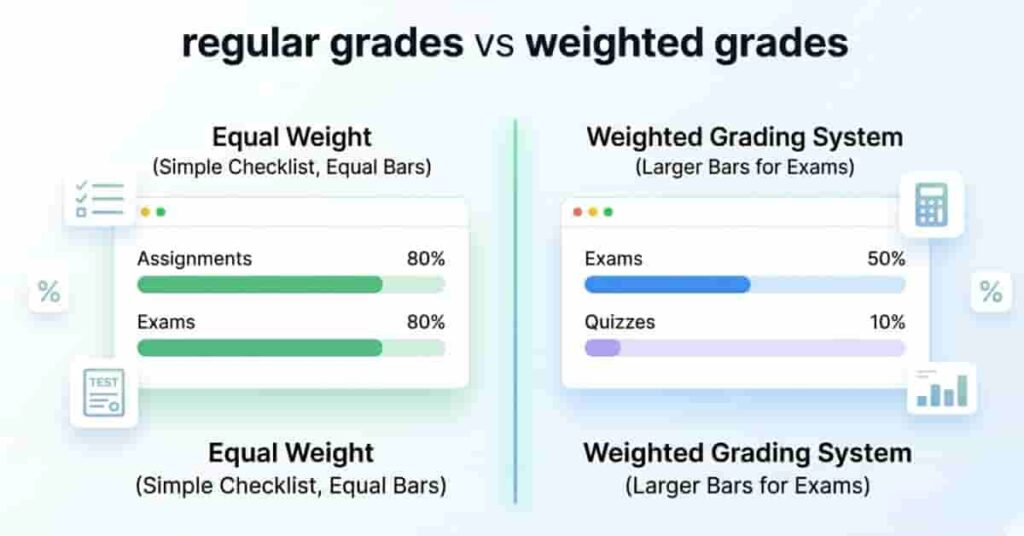
Weighted grades are a grading system where not all scores count the same. Instead, each assignment, quiz, or exam has a different level of importance. For example, a final exam may count more than a homework task. This is why weighted grade calculations in Google Sheets are so useful for students who want accurate results.
In a regular grading system, every task has equal value. A test and a homework assignment affect your grade in the same way. But in a weighted system, important tasks carry more weight. This means a small quiz may impact your grade less than a major exam.
Schools and universities use weighted grading because it gives a fair picture of student performance. It rewards serious exams and major projects more than small classwork. This system also helps teachers measure learning outcomes more accurately.
Many institutions in the USA prefer weighted grading because it reflects real academic effort. When you use tools like Google Sheets, you can easily organize these weights and avoid manual mistakes.
Understanding the Weighted Grade Formula
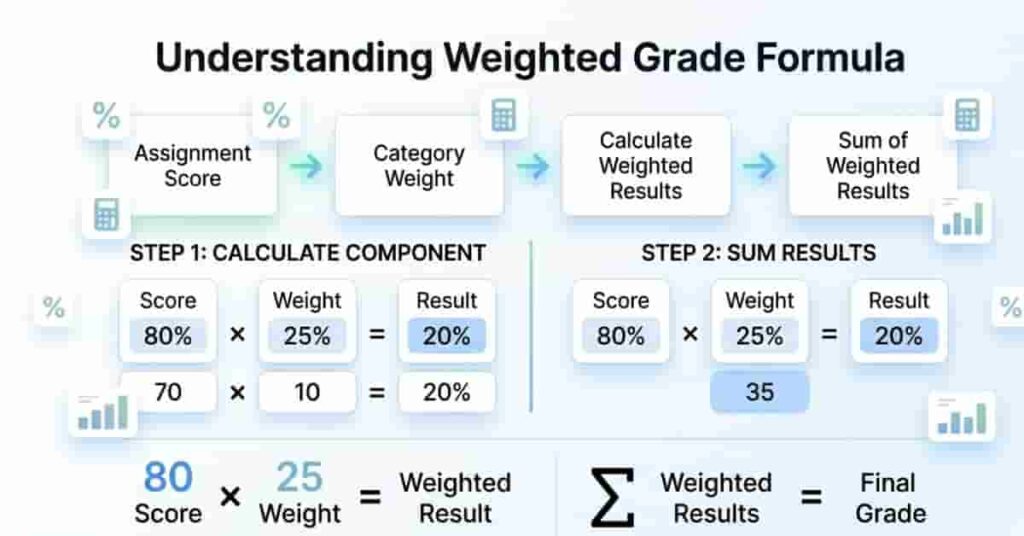
The weighted grade formula helps you calculate a final grade when scores have different weights. This is the core idea behind calculating weighted grade sheets in Google Sheets. Instead of treating all marks equally, the formula multiplies each score by its weight and then combines the results.
At its core, the formula looks like this: each score is the number you earn on an assignment or exam. The weight shows how important that task is in the overall grade. A midterm or final usually has a higher weight than homework. When you multiply the score by weight, you get the weighted result, which shows how much that task contributes to your final grade.
To get the final grade, you add all weighted results together. Then you divide by the total weight. This yields a balanced, fair final percentage. It removes confusion and keeps grading consistent across different tasks.
For example, imagine you score 80 on an exam with a 50% weight and 90 on homework with a 50% weight. You multiply 80 × 0.5 and 90 × 0.5. Then you add both results to get your final grade.
This method is widely used in schools because it more accurately reflects real academic performance.
How to Set Up Google Sheets for Weighted Grades
Setting up your sheet correctly is the first step before using any weighted grade formula. A clean structure helps you avoid errors and speeds up your calculations. Google Sheets works best when your data is organized in simple columns with clear labels.
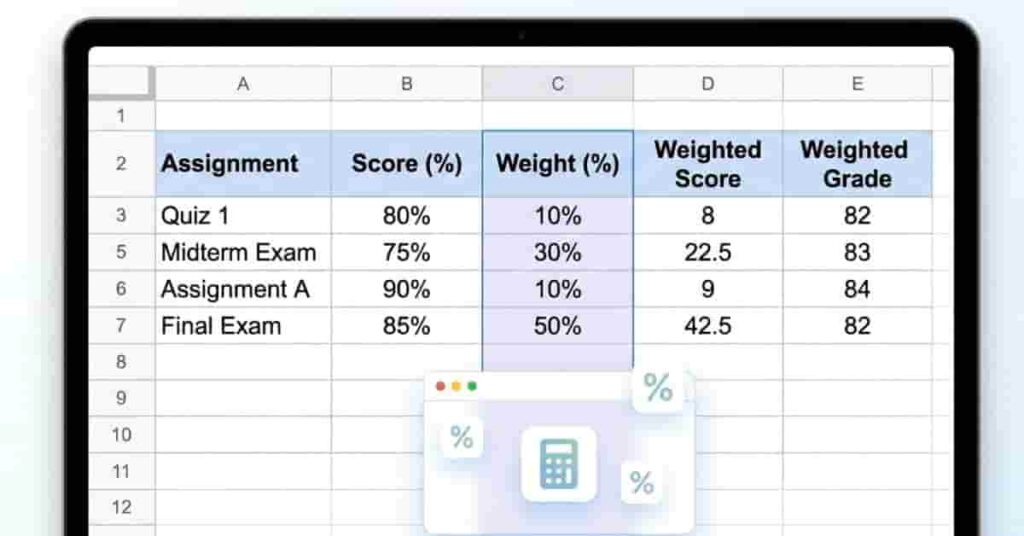
Start by creating four main columns. Label them as Assignments, Score, Weight, and Weighted Score. In the Assignments column, list tasks like quizzes, homework, midterms, and finals. In the Score column, enter the marks you earned for each task. In the Weight column, add the importance of each task, usually in percentages or decimals. The Weighted Score column will be used for calculations later.
Keep your sheet structure simple and consistent. Each row should represent one assignment only. Do not mix multiple tasks in one row, as it can break your formulas and create confusion. This structure is important when you later apply formulas to calculate weighted grade sheets.
For better clarity, use Google Sheets’ formatting tools. Bold your headers, freeze the top row, and use borders to separate sections. You can also highlight the Weight column in a different color to make it stand out. This makes your sheet easier to read, especially when you have many entries.
Want faster results? Try our Weighted Grade Calculator to instantly calculate your final scores without manual formulas.
Step-by-Step: Calculate Weighted Grades in Google Sheets
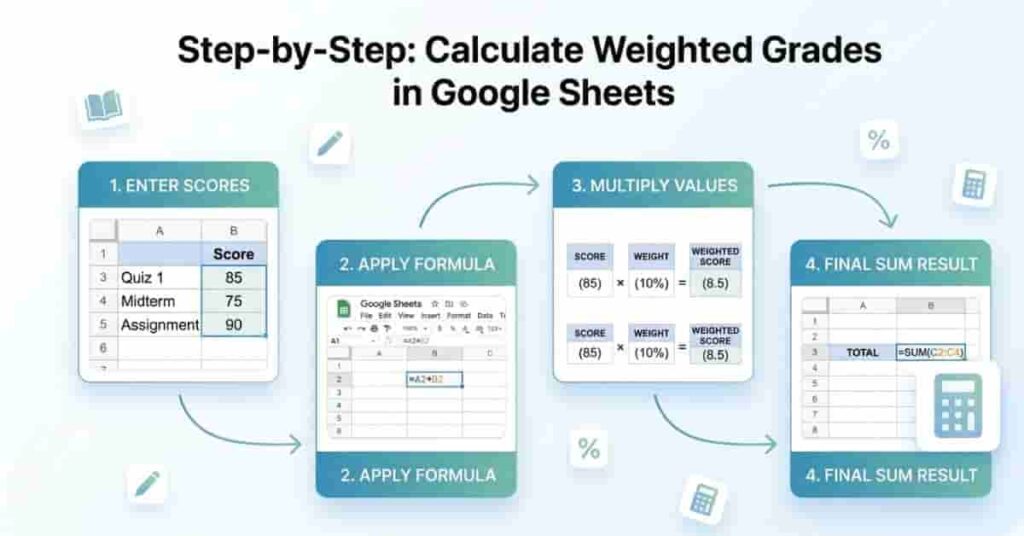
Calculating weighted grades in Google Sheets becomes simple when you follow a clear process. This method helps you avoid mistakes and ensures your final grade is accurate, especially when dealing with calculating weighted grade sheet setups.
Start by entering all your data in Google Sheets. In Step 1, add your scores and weights in separate columns. Each row should represent one assignment, quiz, or exam. Make sure your weights are consistent, either in percentages or decimals, to avoid calculation errors.
In Step 2, apply a formula for each row. Click in the “Weighted Score” column and multiply the score by its weight. For example, if your score is in cell B2 and weight in C2, use a simple formula like =B2*C2. This helps you clearly calculate each task’s contribution.
In Step 3, copy the formula down for all rows. This ensures every assignment gets its correct weighted value. Google Sheets will automatically adjust the cell references, so you don’t need to retype the formula.
In Step 4, use the SUM function to get your final grade. Add all weighted scores together using =SUM(D2:D10) or your actual range. This gives you the total weighted result, which represents your final performance.
This step-by-step method makes grading fast, accurate, and easy to manage in Google Sheets.
Weighted Grade Formula in Google Sheets
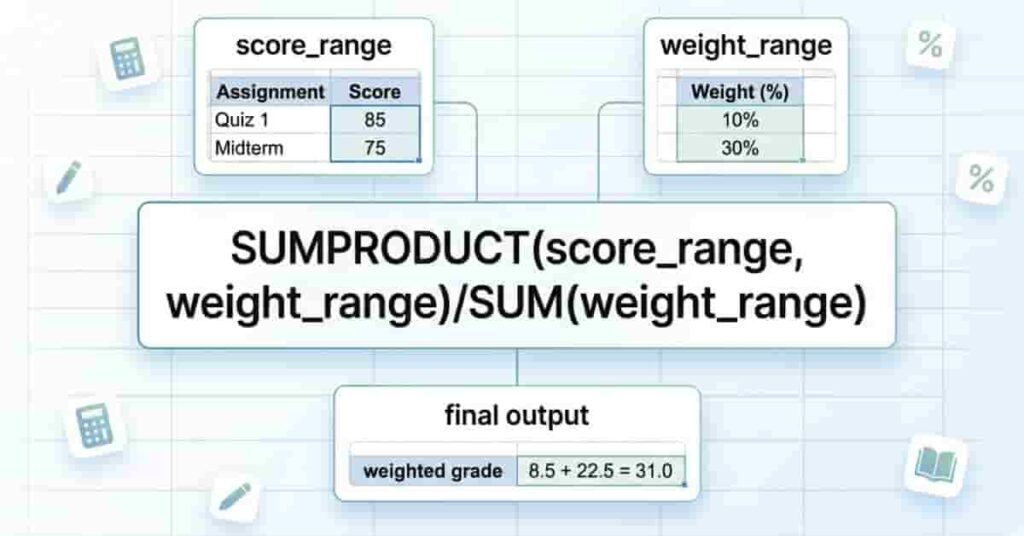
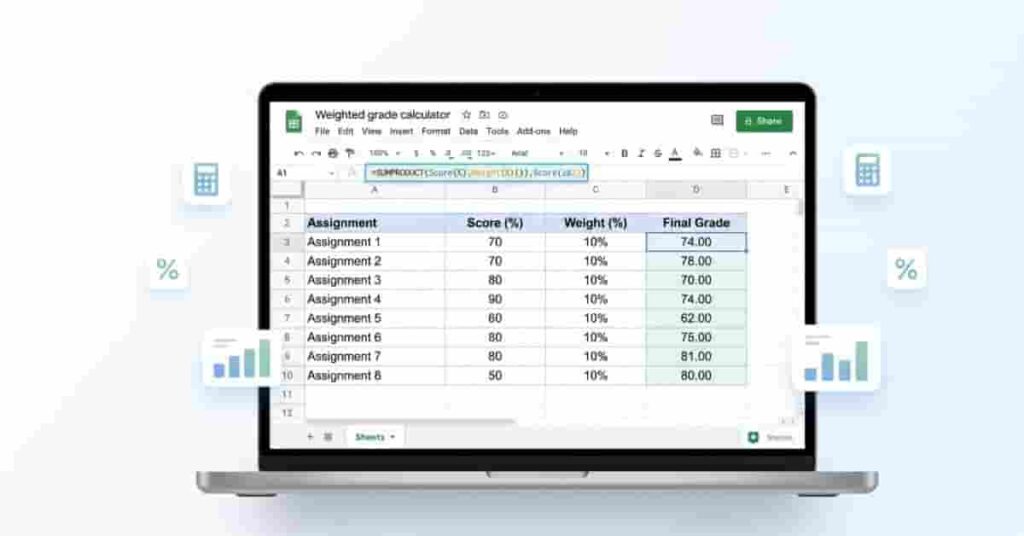
The easiest way to calculate a full weighted grade in Google Sheets is by using one powerful formula. This is the most important part of the weighted grade formula sheets because it saves time and removes manual errors. Instead of multiplying each score individually, Google Sheets handles everything in a single step.
The main formula is:
=SUMPRODUCT(score_range, weight_range)/SUM(weight_range)
This formula works by multiplying each score by its matching weight first. Then it adds all those results together. After that, it is divided by the total of all weights. This gives you a clean and accurate final grade without extra steps.
Use SUMPRODUCT when you have multiple assignments, quizzes, or exams with different weights. It works best when your data is already organized in columns. This method is ideal for students and teachers who want fast results when setting up weighted grade sheets. It also reduces the chance of formula mistakes.
Many users make common mistakes while using this formula. One mistake is mixing percentages and decimals in weights. Another issue is selecting the wrong ranges, which breaks the calculation. Some users also forget to keep the score and weight ranges aligned row by row. Always double-check your columns before applying the formula.
When used correctly, this method provides a reliable, professional grading system in Google Sheets.
If formulas feel confusing, the Weighted Grade Calculator can automatically handle all calculations for you.
Example of Weighted Grade Calculation
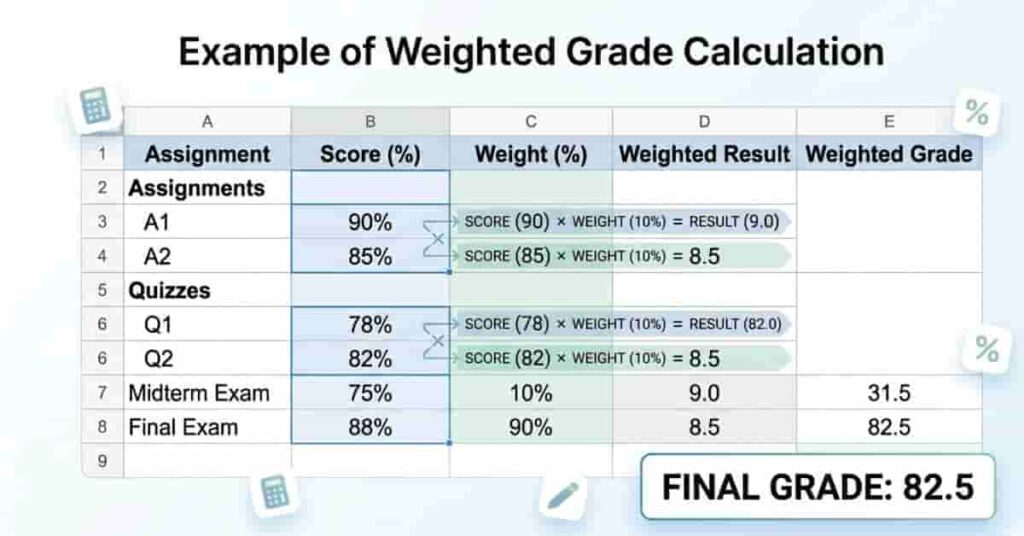
Let’s understand how weighted grades in Google Sheets actually work with a simple real example. This will help you see how scores and weights combine to form your final grade. It also makes it easier to apply weighted grade sheets in real assignments.
Imagine a student has three tasks: assignments, a midterm, and a final exam. Each task has a different weight. Assignments count for 30%, the midterm for 30%, and the final exam for 40%. The student scored 85 on assignments, 78 on the midterm, and 90 on the final exam. This setup is common in many USA schools.
Now we calculate step by step. First, multiply each score by its weight. Assignments: 85 × 0.30 = 25.5. Midterm: 78 × 0.30 = 23.4. Final exam: 90 × 0.40 = 36. Add all results together: 25.5 + 23.4 + 36 = 84.9.
So, the final weighted grade is 84.9%. This method gives a more accurate reflection of performance because it values important exams more than smaller tasks.
In Google Sheets, this same result can be calculated instantly using formulas instead of manual steps. That is why it is widely used for fast and error-free grading.
Advanced Tips for Better Accuracy
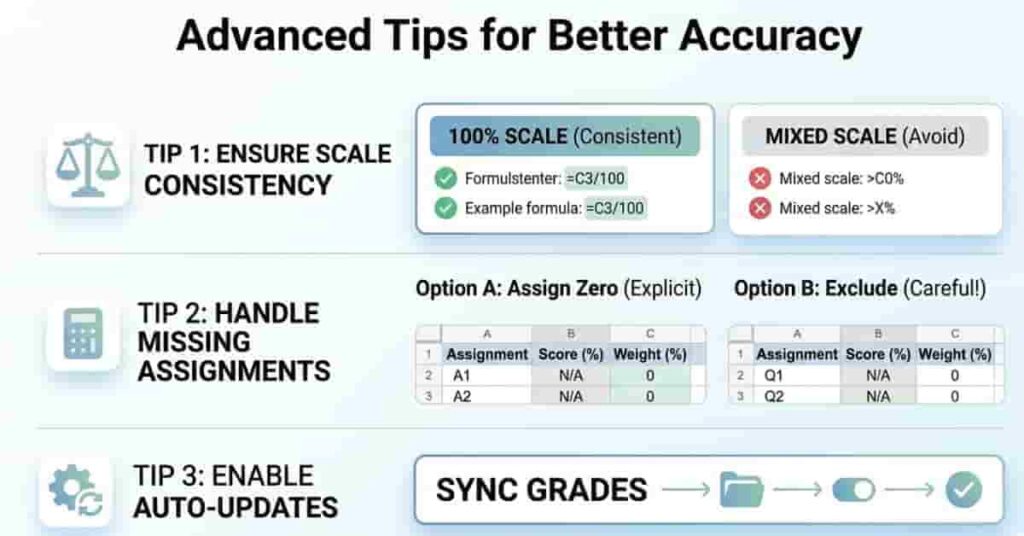
When working with weighted grades in Google Sheets, small setup mistakes can affect your final result. These advanced tips help you maintain accurate, reliable grading, especially when managing large datasets or multiple students.
One key point is using percentages correctly. Some users enter weights like 30 or 40, while others use 0.30 or 0.40. Both can work, but you must stay consistent. If you use the 100% system, make sure your totals add up to 100. If you use the 1.0 scale, ensure all weights sum to 1. Mixing both formats will break your calculated weighted grade sheet formula and yield incorrect results.
Another important tip is how to handle missing assignments. If a student has not submitted work, leave the score blank rather than entering zero, unless it is a real zero. Blank cells help formulas like SUMPRODUCT work more cleanly. You can also use conditional formatting to highlight missing entries for quick review.
Auto-updating grades is another powerful feature in Google Sheets. Once your formulas are set, any change in score or weight updates the final grade instantly. This saves time and reduces manual recalculation errors. It also helps teachers track progress in real time.
These simple improvements make your grading system more stable, accurate, and easy to manage for long-term use.
Common Errors in Weighted Grade Sheets
Even a small mistake can break your weighted grades Google Sheets setup. Many beginners get incorrect results due to simple formatting or formula issues. Understanding these errors helps you build a more accurate grading sheet and avoid confusion later.
One common error is using the wrong weight format. Some users mix percentages (e.g., 30%) with decimals (e.g., 0.3) in the same sheet. This produces incorrect results in your weighted grade calculation formula. Always choose one format and stay consistent across all rows.
Another frequent mistake is selecting incorrect ranges in formulas. If your score and weight ranges do not match row by row, Google Sheets returns the wrong result. For example, missing one row or including extra cells can completely change the final grade. Always double-check your selected range before applying SUMPRODUCT.
Not normalizing weights is also a major issue. Sometimes users forget that total weights must equal 100% or 1. If the total is higher or lower, the final grade becomes inaccurate. Always verify your weight total before trusting the result.
Fixing these small issues ensures your grading sheet stays reliable and produces correct academic results every time.
Conclusion
In this guide, we covered how to calculate weighted grades step by step in Google Sheets. You learned the setup, formulas, and common mistakes to avoid. Now you can confidently build a reliable grading system for any class or assignment.
Using weighted grades in Google Sheets makes grading faster, clearer, and more accurate for beginners. It removes manual errors and gives instant results with simple formulas. This method is especially helpful when managing multiple assignments with different weights.
You can now apply the calculate weighted grades sheets method to your own projects and improve your academic tracking. Try building your own sheet and experiment with different grade structures.
If this guide helped you, share it with others or leave a comment with your experience. You can also explore more Google Sheets tutorials to improve your data skills further.

Team ClassRank builds smart, student-friendly calculators to make grade and rank tracking simple and accurate. For questions or feedback, contact us at classrankcalculator@gmail.com.